Time Configuration Page
Overview
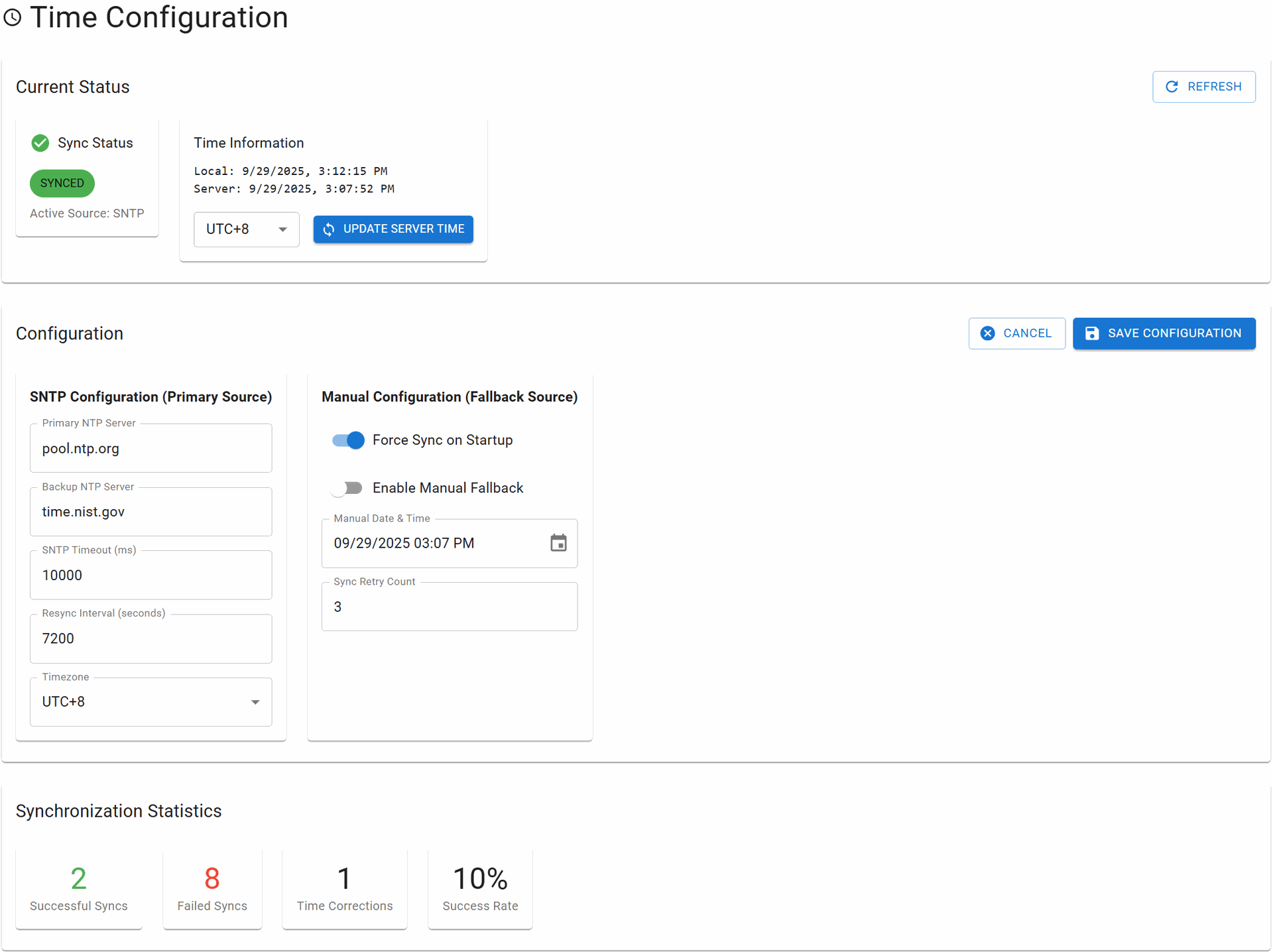
The Time Configuration page manages system time synchronization for the RBgrid power measurement device. Accurate timekeeping is critical for proper system operation, affecting tariff calculations, statistical data storage, device synchronization, and scheduled operations.
Why Time Synchronization Matters
Accurate system time is essential for:
- Tariff Calculation: Apply correct time-of-use electricity rates
- Statistics Storage: Timestamp measurements with proper time periods
- ESP-NOW Network: Synchronize multiple devices in the mesh network
- Telemetry Data: Provide accurate timestamps for remote monitoring
- Scheduled Operations: Execute internal services and automation on schedule
- Data Correlation: Align measurements with external systems
- Event Logging: Maintain chronological order of system events
Time Source Architecture
Dual-Source Time System
The device implements a resilient dual-source time system:
- Primary Source: SNTP (Simple Network Time Protocol) servers
- Fallback Source: Manual time configuration
This architecture ensures continuous operation even without network connectivity.
Automatic Failover Logic
1. System startup → Check WiFi connection
2. If WiFi available → Use SNTP (Primary)
3. If WiFi unavailable → Use Manual time (Fallback)
4. When WiFi restored → Automatically switch to SNTP
5. Periodic resync → Correct time drift
Current Status Section
Sync Status Indicators
Sync Status
- SYNCED: Time successfully synchronized
- SYNCING: Synchronization in progress
- FAILED: Synchronization failed
Active Source
- SNTP: Using network time server
- MANUAL: Using fallback manual time
Time Information Display
Shows three time values:
- Local: Current device system time
- Server: Last synchronized server time
- Timezone: Active timezone offset (e.g., UTC+8)
Time Format: MM/DD/YYYY, HH:MM:SS AM/PM
Configuration Section
SNTP Configuration (Primary Source)
Network time synchronization using SNTP protocol for accurate, automatic time management.
Primary NTP Server
- Type: String (hostname or IP)
- Default:
pool.ntp.org - Description: Main time server for synchronization
- Recommended Servers:
pool.ntp.org- Global NTP pooltime.google.com- Google Public NTPtime.cloudflare.com- Cloudflare NTPtime.nist.gov- NIST time server (US)- Regional pools:
us.pool.ntp.org,europe.pool.ntp.org,asia.pool.ntp.org
Backup NTP Server
- Type: String (hostname or IP)
- Default:
time.nist.gov - Description: Secondary server if primary fails
- Purpose: Redundancy for critical time sync
SNTP Timeout (ms)
- Type: Number
- Range: 1000-30000 milliseconds
- Default:
10000(10 seconds) - Description: Maximum wait time for server response
- Recommendation:
- Fast network: 3000-5000ms
- Slow/unstable: 10000-15000ms
- Satellite/remote: 20000-30000ms
Resync Interval (seconds)
- Type: Number
- Range: 300-86400 seconds
- Default:
7200(2 hours) - Description: Period between time synchronizations
- Purpose: Correct ESP32 internal clock drift
- Recommendations:
- High precision needed: 300-1800 (5-30 minutes)
- Normal operation: 3600-7200 (1-2 hours)
- Low precision/stable: 14400-86400 (4-24 hours)
Note: ESP32 internal clock typically drifts 10-40 seconds per day depending on temperature and crystal accuracy. Regular resync ensures accuracy.
Timezone
- Type: Timezone selector
- Format: UTC offset (UTC-12 to UTC+14)
- Default: System detected or UTC
- Examples:
UTC+0- London (GMT)UTC+8- Hong Kong, SingaporeUTC-5- New York (EST)UTC+1- Central European Time
Manual Configuration (Fallback Source)
Manual time settings used when network time is unavailable.
Force Sync on Startup
- Type: Toggle switch
- Default:
OFF - Description: Force immediate time sync at device boot
- Use Case: Critical applications requiring immediate accurate time
- Impact: May delay startup by up to timeout period
Enable Manual Fallback
- Type: Toggle switch
- Default:
ON - Description: Allow manual time as backup source
- Warning: Disabling removes time redundancy
Manual Date & Time
- Type: DateTime picker
- Format: MM/DD/YYYY HH:MM AM/PM
- Default: Current build time
- Description: Fallback time when SNTP unavailable
- Usage: Set to approximate current time before deployment
Sync Retry Count
- Type: Number
- Range: 1-10
- Default:
3 - Description: Attempts before switching to fallback
- Behavior: Exponential backoff between retries
Synchronization Statistics Section
Real-time metrics showing time synchronization performance.
Statistics Metrics
Successful Syncs
- Description: Total successful time synchronizations
- Reset: On device reboot or manual reset
Failed Syncs
- Description: Total failed synchronization attempts
- Common Causes:
- Network timeout
- Invalid server response
- DNS resolution failure
- Firewall blocking NTP (port 123)
Time Corrections
- Description: Number of significant time adjustments (>1 second)
- Interpretation:
- Low count: Stable clock
- High count: Clock drift or network issues
Success Rate
- Calculation: (Successful / Total Attempts) × 100%
- Thresholds:
-
95%: Excellent
- 80-95%: Good
- 50-80%: Fair (check network)
- <50%: Poor (troubleshoot required)
Time Synchronization Process
Initial Synchronization
1. Device boot
2. Initialize local clock with compiled time
3. Check network availability
4. If network available:
   a. Query primary NTP server
   b. If failed, try backup server
   c. If all failed after retries, use manual time
5. If network unavailable:
   a. Use manual fallback time
6. Set system time and timezone
7. Start resync timer
Periodic Resynchronization
1. Resync timer expires
2. Check network status
3. If using manual time and network available:
   a. Switch to SNTP immediately
4. Query NTP server
5. Calculate time difference
6. If difference > threshold:
   a. Gradually adjust time (slew)
   b. Or immediate jump (step)
7. Update statistics
8. Restart resync timer
Best Practices
Server Selection
- Use geographically close NTP servers for lower latency
- Configure both primary and backup servers
- Avoid overloading single servers - use pool addresses
Interval Configuration
- Balance accuracy needs with network load
- Shorter intervals for:
- Critical billing applications
- Multi-device synchronization
- Unstable clock hardware
- Longer intervals for:
- Standalone devices
- Stable environments
- Limited network bandwidth
Timezone Management
- Always configure correct timezone for local operations
- Store data in UTC internally
- Convert to local time for display only
Manual Time Setup
- Set manual time close to actual before deployment
- Enable manual fallback for offline-capable devices
- Document manual time for maintenance
Network Requirements
Firewall Configuration
- Port: UDP 123 (NTP)
- Direction: Outbound
- Protocol: UDP
- Servers: Allow configured NTP servers
Bandwidth Usage
- Per sync: ~48-128 bytes
- Daily (2-hour interval): ~1.5 KB
- Monthly: ~45 KB
Troubleshooting
High Failed Sync Count
Causes & Solutions:
- DNS Issues: Use IP addresses instead of hostnames
- Firewall: Ensure UDP port 123 is open
- Network: Check WiFi connection stability
- Server: Try different NTP servers
Time Drift Issues
Causes & Solutions:
- Temperature: ESP32 clock affected by temperature
- Crystal: Hardware variation in crystal oscillator
- Solution: Decrease resync interval
Sync Always in MANUAL Mode
Causes & Solutions:
- No WiFi: Check network configuration
- SNTP Disabled: Verify SNTP configuration enabled
- All Servers Failed: Test with known working servers
Time Jumps Causing Data Gaps
Causes & Solutions:
- Large Corrections: Enable gradual time adjustment
- Infrequent Sync: Reduce resync interval
- Manual Time Wrong: Set accurate manual fallback
Impact on Other Systems
Statistics Collection
- Time changes may create gaps or overlaps in data
- System handles forward jumps by padding
- Backward jumps may cause data overwrites
Tariff Calculation
- Incorrect time can apply wrong electricity rates
- Always verify time before enabling time-of-use tariffs
ESP-NOW Synchronization
- All devices in mesh should use same time source
- Configure identical NTP servers across devices
- Use shorter resync intervals for better alignment
Event Scheduling
- Scheduled tasks may execute late or early during corrections
- Critical tasks should check actual time before execution