Quick Start Guide. WiFi settings
Follow these steps to configure your RBgrid ESP32 device and access the web application.
Step 1: Connect to RBGRID Access Point
- Turn on your RBGRID ESP32 device
- Open WiFi settings on your phone or computer
- Find and connect to the WiFi network:
-
Network Name (SSID):
RBGRID-AP -
Password:
RBGRID123
💡 Note: This is a temporary connection used only for initial setup.
Step 2: Configure WiFi Network
-
Open your web browser and navigate to:
http://192.168.4.1/wifi
The page should open automatically. If not, manually enter the address above.
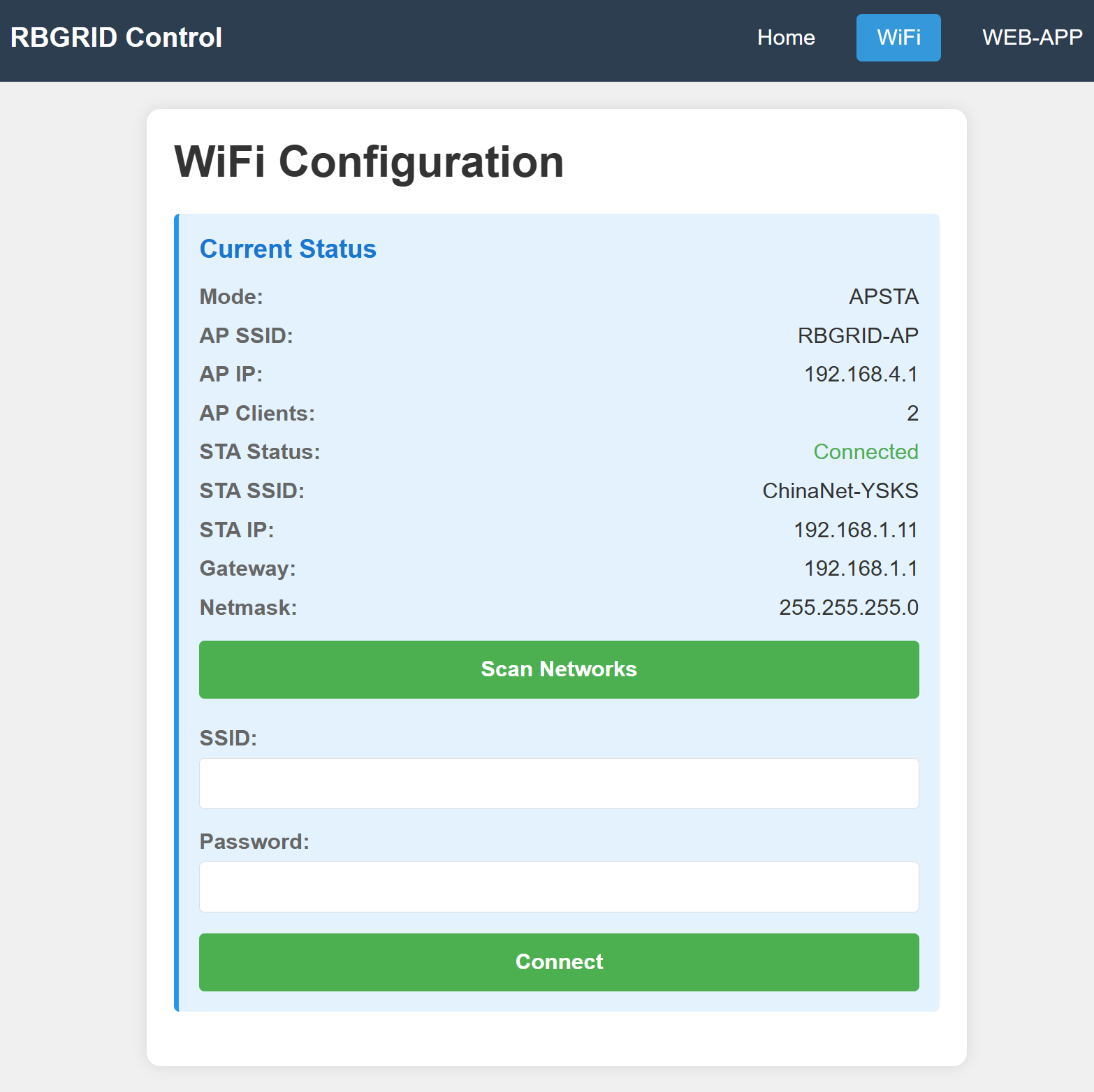
- View current connection status at the top of the page:
-
If the ESP32 is already connected to a WiFi network, you'll see:
- Network name (SSID)
- IP address
- Signal strength (RSSI)
- Gateway and netmask
- Connect to your home WiFi network:
- Click the "Scan Networks" button
- Select your WiFi network from the list (or type the name manually)
- Enter your WiFi password
- Click "Connect"
- Wait for the device to restart (~10-15 seconds)
- The ESP32 will save the network credentials
- The device will automatically reboot
- After reboot, it will connect to your home WiFi network
⚠️ Important: Make sure you enter the correct WiFi password. If the connection fails, the device will remain in AP mode, and you can try again.
Step 3: Access the Web Application
Option A: Use the WEB-APP Button (Recommended)
-
Return to the WiFi settings page:
http://192.168.4.1/wifi - Check that the ESP32 is connected:
- You should see the STA IP address (e.g.,
192.168.1.11) - The WEB-APP button in the navigation bar should now be active (not grayed out)
- Switch back to your home WiFi network:
- Disconnect from
RBGRID-AP - Connect to your home WiFi network
- Click the WEB-APP button in the navigation
- This will open the RBGRID web application
- The ESP32 IP address will be automatically included in the URL
Option B: Direct URL Access
If you prefer to access the web application directly:
-
Note the ESP32 IP address from the WiFi settings page (e.g.,
192.168.1.11) -
Open your browser and navigate to:
https://webapp.rbgrid.io/?esp32_ip=192.168.1.11&force=1
Replace
192.168.1.11with your actual ESP32 IP address
- Bookmark this URL for quick access in the future
Step 4: Save Your Settings
For future use, save the following information:
-
ESP32 IP Address:
192.168.1.11(example - use your actual IP) -
Web Application URL:
https://webapp.rbgrid.io/?esp32_ip=YOUR_IP&force=1 - Direct Access: You can access the web application anytime by opening the saved URL
💡 Tip: Create a bookmark in your browser or save the URL to your home screen for quick access.
Troubleshooting
Cannot connect to RBGRID-AP
- Check that the ESP32 device is powered on
-
Verify you're using the correct password:
RBGRID123 - Try forgetting the network and reconnecting
WiFi connection fails
- Double-check your WiFi password
- Ensure your router is within range and functioning properly
- Verify your WiFi network supports 2.4 GHz (ESP32 does not support 5 GHz)
WEB-APP button is grayed out
- Verify the ESP32 is connected to your WiFi network
-
Check that you see a valid STA IP address (not
0.0.0.0) - Try refreshing the page
Cannot access web application
- Ensure your computer/phone is connected to the same WiFi network as the ESP32
- Verify the ESP32 IP address hasn't changed
- Check your internet connection (required for loading the web application)
IP address changed
-
Reconnect to
RBGRID-AP(password:RBGRID123) -
Navigate to
http://192.168.4.1/wifi - Check the new IP address under "STA IP"
- Update your bookmarked URL with the new IP address
Advanced Settings
Changing WiFi Network
To connect to a different WiFi network:
- Connect to
RBGRID-AP(password:RBGRID123) - Open
http://192.168.4.1/wifi - Scan and select the new network
- Enter the password and click "Connect"
Factory Reset
If you need to reset the device to factory settings, please refer to the device documentation or contact support.
Network Architecture
┌─────────────────┐
│  Your Router    │
│  (Home WiFi)    │
└────────┬────────┘
         │
         │ STA Mode (Client)
         │ IP: 192.168.1.11 (example)
         │
    ┌────┴─────┐
    │  ESP32   │
    │  RBGRID  │
    └────┬─────┘
         │
         │ AP Mode (Access Point)
         │ IP: 192.168.4.1
         │ SSID: RBGRID-AP
         │
┌────────┴────────┐
│ Your Device     │
│ (Initial Setup) │
└─────────────────┘
The ESP32 operates in
dual mode (APSTA):
-
AP Mode: For initial configuration (
RBGRID-AP)
-
STA Mode: Connected to your home WiFi as a client
Security Notes
-
Default AP password:
RBGRID123- Consider changing this if security is a concern - Web application: Always uses HTTPS for secure communication
- Local network: The ESP32 is accessible only from your local WiFi network
Support
If you encounter any issues not covered in this guide, please:
- Check the device logs via serial monitor
- Visit the project repository:
GitHub
- Contact technical support