Opening the app
There are two ways to open the RBgrid web app. Both are the same app, and in both your data goes straight from your browser to your hub on your home network.
- At webapp.rbgrid.io: nothing to install. You open our page and connect it to your hub's address.
- From your hub: you install the app on the hub once, then open the hub's address.
You can use both and switch at any time: settings, points and history are on the hub, not in the app.
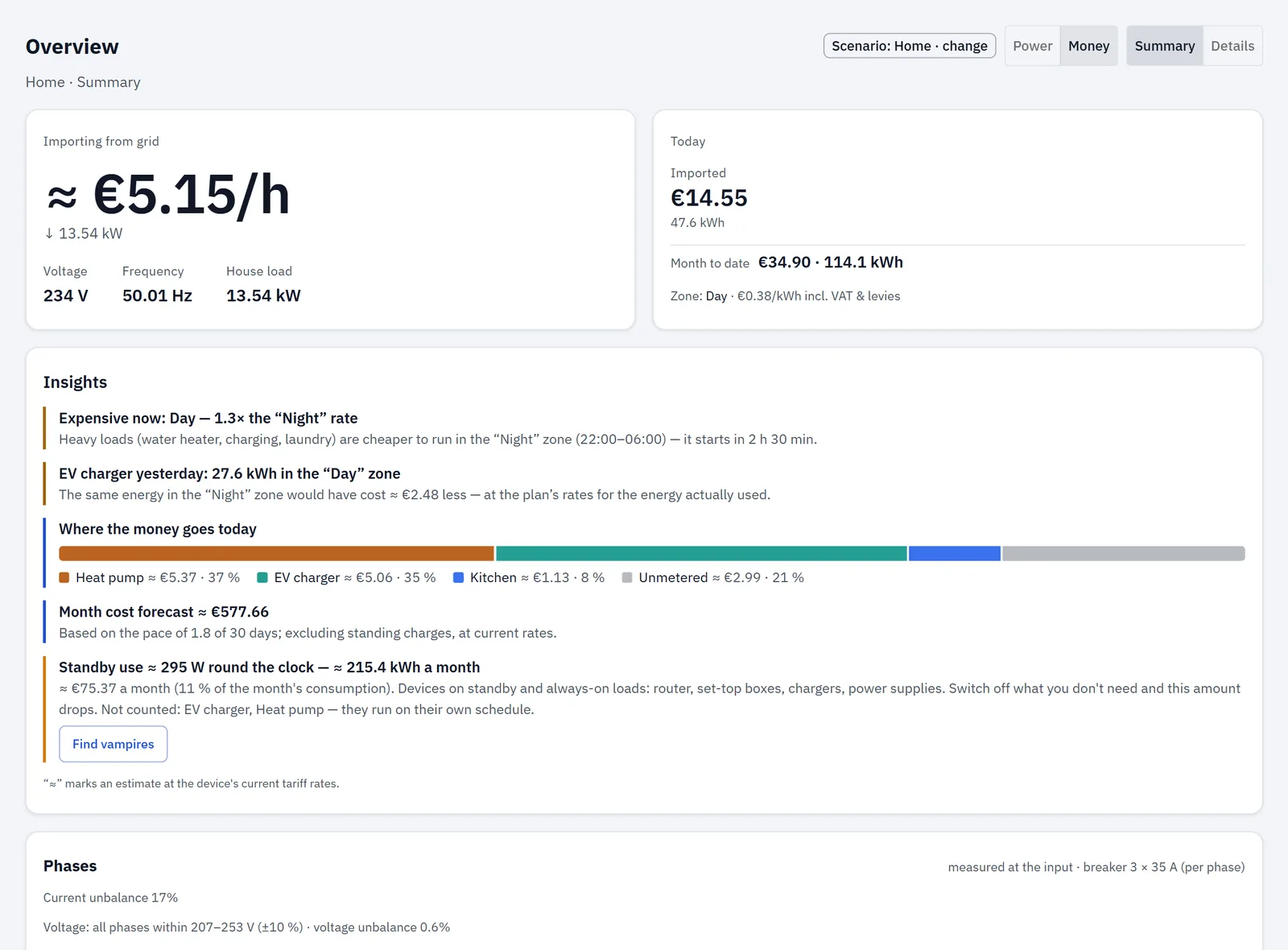
Which one to use
| At webapp.rbgrid.io | From your hub | |
|---|---|---|
| Install | None. | Install the package once, and again after each release. |
| App version | Always the latest. | The version you installed. |
| Internet | Needed to load the page. | Not needed: the app works on your home Wi-Fi alone; even its fonts are in the package. |
| Where your data goes | From the browser straight to the hub. It doesn't pass through our servers. | From the browser straight to the hub. |
| Browsers | Checked in Chrome and Edge. The browser asks once to allow access to devices on your local network. | Any current browser. |
| Where you can use it | On a computer on the same network as the hub. | On a computer or phone on the same network as the hub. |
Neither way gives you access from outside your home. For that, use your own VPN into your home network. If you run Home Assistant, its own remote access shows the hub's data from MQTT, but not the RBgrid app.
Open the app at webapp.rbgrid.io
- On a computer on the same network as the hub, open
https://webapp.rbgrid.ioin Chrome or Edge. - On the connect screen, enter the hub's address in Device IP or URL, for example
192.168.1.50, and choose Connect. - The browser asks whether this site may access devices on your local network. Allow it. It asks only once.
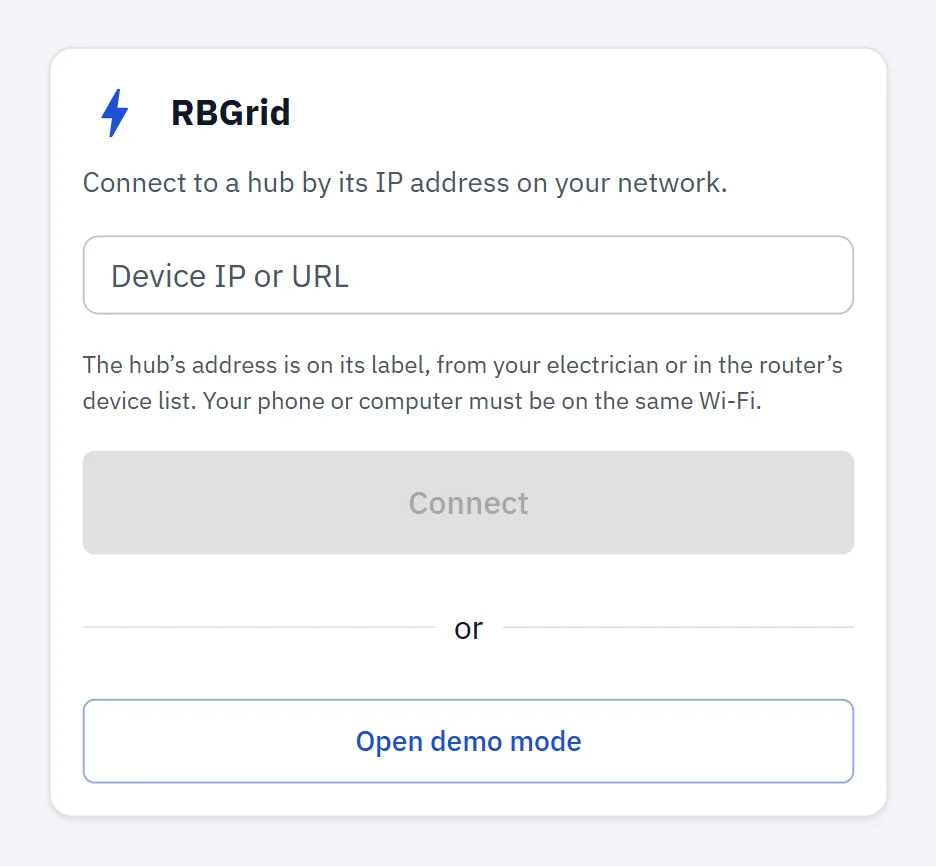
The browser remembers the last address, so next time the app opens on your hub.
If you said no, or the app says No hub answers at this address, allow it in the browser's site settings (Local network access) and connect again. Check the address too: it's the hub's address on your home network, not 192.168.4.1.
From hub firmware v1.1.3, the hub always accepts the RBgrid app at https://webapp.rbgrid.io and https://demo.rbgrid.io; there's nothing to set. A hub on v1.1.2 or older accepts any site, unless you limited it in Settings → Browser access (CORS): then add https://webapp.rbgrid.io there. → Settings: Browser access
Install the app on your hub
The app comes as a separate package with each release, rbgrid-ui_<version>.zip: a kit/ folder and a ui-manifest.json file. Install it onto the hub over the hub's API: upload each file of kit/, then commit the manifest. The commands are in Build & flash and in the release notes.
- If you've set an API token, send it with each call.
- The swap is atomic: the hub switches to the new app only after the whole package has arrived and been checked.
Then open http://<hub address>/. The app opens on the Overview of that hub. On a hub that hasn't been set up yet, a banner says The hub still has its factory settings; Set up → opens the setup wizard.
Until a package is installed, the hub's address shows only the firmware's minimal built-in page; the API works.
Update the app on your hub
Install the new package the same way; it replaces the old one. The app and the firmware are updated separately: a firmware update over the air keeps the installed app, and installing an app doesn't change the firmware. After a firmware update, install the app package from the same release.
Security
The app talks to the hub over plain HTTP on your home network, in both ways. Changes to the hub are protected once you set an API token (Settings → Security). On hub firmware v1.1.2 and later, the app warns you while there's no token or the hub's own Wi-Fi still has its setup password; the warning goes away when both are done.
The hub answers browser requests only from its own pages and from the RBgrid app. Other websites can't use your hub from a visitor's browser unless you add them in Settings → Browser access (CORS).
Several hubs
In the sidebar, choose Switch. Enter the other hub's address (Device IP or URL) and Connect. Open demo mode shows the app with sample data instead.
- At webapp.rbgrid.io, you can connect to any of your hubs this way, with nothing to set on them.
- In the app served by one hub, the other hub must accept the first hub's address. Hubs on v1.1.3 and later accept only listed sites, so add
http://<first hub's address>in Settings → Browser access (CORS) on the other hub.
Try it without a hub
demo.rbgrid.io runs the same app with built-in sample homes. It isn't connected to any hub.